10 Christmas digital signage ideas, from holiday opening hours to an advent calendar, plus a schedule template that shows every slide on the right days.
December is the busiest month on any digital signage screen. Opening hours change, offers turn over every week, and customers want to know when to collect their order and how long they can still buy a gift card. Schedule your Christmas content in advance and every slide shows up on the right days and takes itself off the screen afterwards. Nobody has to remember to swap it by hand in the middle of the rush.
Below are ten Christmas digital signage ideas that work on shop, restaurant, office and lobby screens, plus a ready schedule template with the 2026 holiday dates. For ideas that work all year round, see our guide to digital signage content ideas.
from opening hours to an advent calendar and the January sale
the whole season in one place, shared by every screen
the season covered by the schedule template
10 Christmas digital signage ideas
1. Holiday opening hours
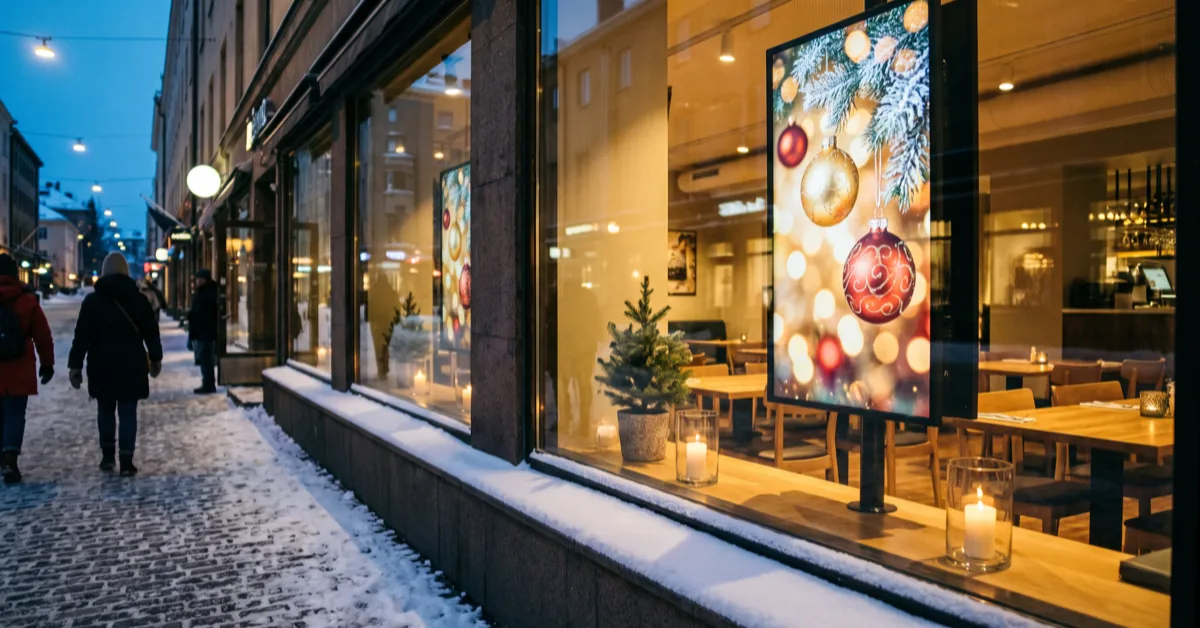
The most important Christmas slide is also the least exciting one. People ask about opening hours at the till, on the phone and at the door, so put them on screen two weeks before Christmas Eve, with Christmas Eve, Christmas Day, Boxing Day, the days in between, New Year's Eve and New Year's Day on separate lines. A window screen shows them to the street even when you are closed. Schedule: 14 Dec to 6 Jan, every day.
2. An advent calendar on the screen
An advent calendar gives people a reason to come back every day. Make 24 slides, one per day of December, and give each one a date range that starts and ends on the same day. Behind each door goes a daily offer, a product tip or a small giveaway. If you design the calendar in Canva, the Canva integration brings each page of a 24-page design onto the screen as its own slide. Schedule: 1 to 24 Dec, one slide per day.
3. Christmas parties and group bookings
For restaurants, the Christmas party season starts in November. Show the free evenings, the group menu price per person and a QR code people can scan from their table to book. When the evenings fill up, swap the image. Our restaurant digital signage guide has more on screens in dining rooms. Schedule: 1 Nov to 11 Dec.
4. Gift cards and gift ideas
Gift cards are the classic last-minute buy. Tell people near the till that they can take one home today and which amounts you sell, and rotate gift ideas by price band next to it: under €20, under €50 and under €100. Price bands help the customer who has no idea what to buy. Schedule: 16 Nov to 24 Dec.
5. Black Friday, then the Christmas campaign
Black Friday falls on 27 November 2026, and many shops keep the deals going until Cyber Monday on 30 November. Give those offers their own slide that ends on the last day of the sale, and let the Christmas campaign start straight after on 1 December. That way an expired offer never stays on screen a day too long. Placement tips are in our guide to the advertising display. Schedule: 27 to 30 Nov, then 1 to 23 Dec.
6. Last order and collection dates
The last day to order a Christmas dinner, a cake or anything online is information customers want to see in good time. Put the date in large type and say where and when orders can be collected. Once orders close, the schedule removes the slide, so nobody tries to order too late. Schedule: from 23 Nov to your last order day.
7. The Christmas menu
A lunch restaurant can show the Christmas lunches and the price of the Christmas buffet, a café its mulled wine and seasonal pastries. Schedule food photos for the hours when they sell: coffee and pastries in the morning, the Christmas lunch at lunchtime. Schedule: the slides Mon to Fri 10:30 to 14:00, and their own playlist on the screen 1 to 23 Dec.
8. A Christmas greeting for customers
The simplest Christmas slide of all: thank you for the year, merry Christmas and a happy new year. A photo of the whole team makes it yours. For atmosphere, add a short winter video, which can also play as a YouTube link. Sound is off by default on a YouTube slide, so the message has to be readable in the picture. Schedule: 21 Dec to 6 Jan.
9. Holiday notices for staff
In an office, factory or site break room, the screen tells everyone when and where the Christmas party is, who works which holiday shift, which days the office is closed and who is on call between Christmas and New Year. Everything is in one place instead of buried in email. More on internal screens in our office digital signage guide. Schedule: 1 to 31 Dec.
10. The January sale and the new year
After Christmas the message changes. The sale, the gift exchange policy and the New Year opening hours come first now. Schedule them in advance and the Christmas campaign turns into the sale on Boxing Day without anyone logging in during their time off. Schedule: 26 Dec to 6 Jan.
A Christmas schedule template for 2026
Here is the whole season in one table. The dates are examples to replace with your own campaign dates. Each row is one slide, and every row except the Christmas lunch fits in the same Christmas playlist.
| Slide | Date range | Days and times |
|---|---|---|
| Christmas party bookings | 1 Nov to 11 Dec | Every day |
| Gift cards and gift ideas | 16 Nov to 24 Dec | Every day |
| Last order dates | 23 Nov to your last order day | Every day |
| Black Friday | 27 to 30 Nov | Every day |
| Christmas campaign | 1 to 23 Dec | Every day |
| Advent calendar doors 1 to 24 | One day each, 1 to 24 Dec | Every day |
| Christmas lunch | 1 to 23 Dec (own playlist) | Mon to Fri 10:30 to 14:00 |
| Staff holiday notices | 1 to 31 Dec | Every day |
| Holiday opening hours | 14 Dec to 6 Jan | Every day |
| Christmas greeting | 21 Dec to 6 Jan | Every day |
| January sale | 26 Dec to 6 Jan | Every day |
Key dates for the 2026 season: Black Friday Fri 27 Nov, Cyber Monday Mon 30 Nov, Christmas Eve Thu 24 Dec, Christmas Day Fri 25 Dec, Boxing Day Sat 26 Dec, New Year's Eve Thu 31 Dec and New Year's Day Fri 1 Jan 2027.
How to build a Christmas playlist
1. Create the playlist. In InfoBox, create a new playlist and add your Christmas slides to it: images, videos, Canva designs or PDFs. When the same playlist runs on several screens, one edit updates them all.
2. Schedule each slide. Give each slide either a date range or days and times from the template. Each weekday can have its own time window. When you need both, as with the Christmas lunch, put those slides in a playlist of their own and schedule that playlist on the screen for 1 to 23 December. The slides themselves show Mon to Fri 10:30 to 14:00.
3. Add the playlist to your screens and publish. Add the playlist to each screen next to its regular content and publish. Slides appear and disappear on schedule, and next Christmas you only need to change the dates. Scheduling is covered in more detail on the digital signage software features page.
What does it cost?
Scheduling, playlists and integrations are included in the InfoBox price of €9 per screen per month for fewer than ten screens and €7 per screen per month from ten screens, both billed annually. Android screens and Samsung Smart Signage displays (Tizen 4.0 or newer) need no extra device; for any other screen, the InfoBox Basic device costs €59 once. The software has a free 14-day trial, so there is time to build and test your Christmas content before the season starts. See InfoBox pricing for the details, work out what your number of screens costs with the price calculator, and see the industry pages for retail digital signage and restaurant digital signage for more use cases.
Want your Christmas content on screen in time?
In a demo we build a Christmas playlist, schedule the slides and look at how it plays on your screens. No commitment.
Frequently asked questions
What should I show on digital signage at Christmas?
Start with holiday opening hours, last order and collection dates and gift cards. Then add an advent calendar, Christmas party bookings, the Christmas menu, a greeting for customers, holiday notices for staff and the January sale. Schedule each item to show only on the days it matters.
How do I schedule Christmas content on digital signage?
In InfoBox each slide gets either a date range or days and times. If you need both, also schedule the playlist on the screen. Put the Christmas slides in one playlist and the same content updates on every screen that runs the playlist. Slides appear on the screen and disappear from it on schedule.
Can I run an advent calendar on a digital screen?
Yes. Make 24 slides, one for each day of December, and give each a date range that starts and ends on the same day. With the Canva integration, each page of a 24-page Canva design comes onto the screen as its own slide.
When should Christmas content go on the screen?
Christmas party bookings can start in early November and gift cards in mid-November. The Christmas campaign usually starts on 1 December after Black Friday, opening hours go up about two weeks before Christmas Eve, and the sale is scheduled to start on Boxing Day.
Does scheduling cost extra in InfoBox?
No. Scheduling, playlists and integrations are included in the InfoBox price of €9 per screen per month for fewer than ten screens and €7 per screen per month from ten screens, billed annually. The software has a free 14-day trial.

Author
Kasper Välimäki
CEO, InfoBox
Kasper is the founder and CEO of InfoBox. He has helped 600+ customers deploy digital signage in restaurants, retail stores, offices, and construction sites.
Learn more