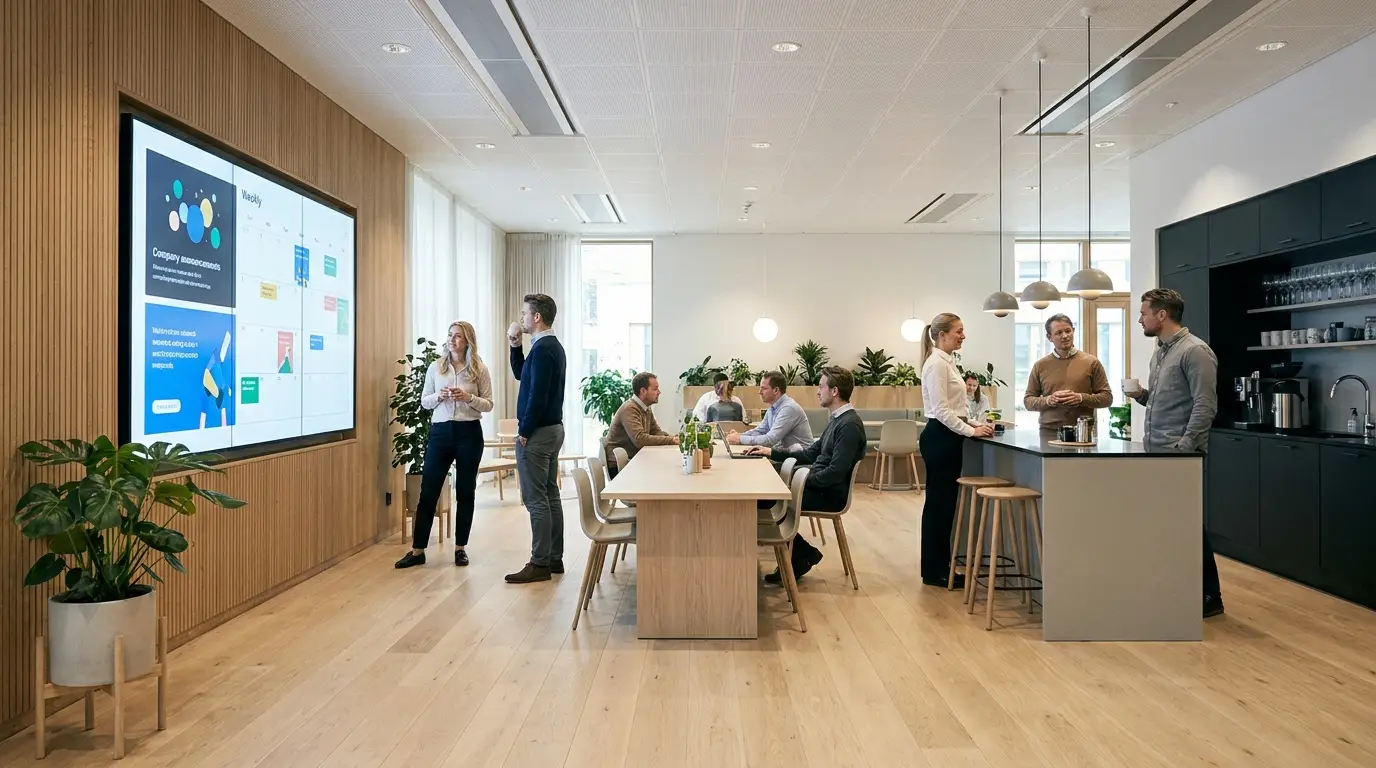
A break room screen reaches the whole team without email noise. 8 practical ideas: KPI dashboards, announcements, lobby displays, Power BI, scheduling tips and more.
The hybrid office has changed the way teams communicate. On any given Tuesday, half your people are remote and half are in the office, and the break room noticeboard has not been updated since January. Digital signage gives you a channel that works for everyone in the room, no Slack message required.
Finnish offices are adopting digital signage faster than most sectors. The reasons are practical: a screen in the break room reaches the team without email noise, a lobby display sets the tone for visitors, and a Power BI dashboard on the sales floor keeps everyone pulling in the same direction. InfoBox starts at €7 per screen per month, works on any existing Android TV, and takes about three minutes to set up.
Here are eight content ideas that Finnish offices are already using, with concrete tips on what to show and how to schedule it.
1. KPI and sales dashboards
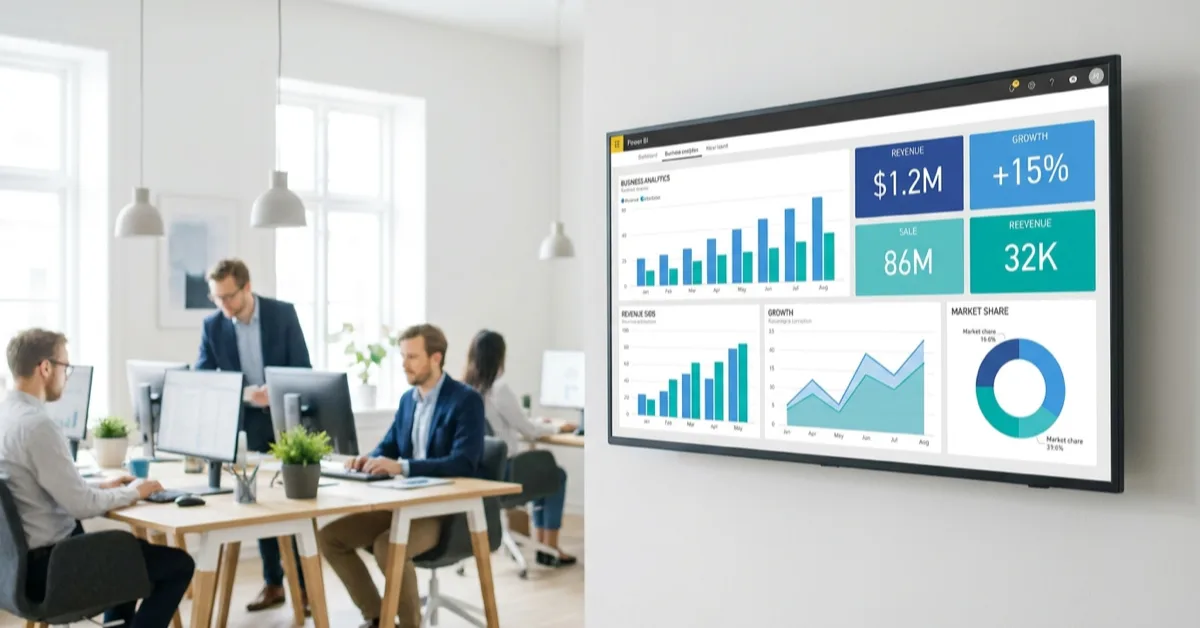
The single most popular use case in offices is live performance data. Monthly sales figures, weekly targets, support ticket queues, production output, whatever metric drives your team, on a screen where everyone can see it without opening a browser tab.
InfoBox supports a direct Power BI integration: you paste the embed URL of your report into the InfoBox Platform and the screen shows the live dashboard. No manual screenshots, no emailed PDFs. The data refreshes automatically as Power BI updates.
For the best result, dedicate one screen to a single report rather than rotating several dashboards. Sales teams often mount a display above the whiteboard at the end of the room. Support teams prefer a screen visible from every desk.
2. Internal announcements and HR communications
Email open rates for internal newsletters hover around 30 to 40 percent in most organisations (Source: Staffbase Internal Communications Benchmark 2024). A screen in the break room reaches everyone who walks past, including the field engineer who checks emails once a day.
Common announcement types that work well on office screens: new hire introductions with a photo, upcoming all-hands or training dates, policy reminders, benefit programme updates, and recognition for individual or team wins. Keep each slide to one message, use large text, and change the content at least weekly so people continue to glance at it.
InfoBox lets you schedule content from the cloud. You can prepare next month's announcements today, set them to go live on the right date, and they appear automatically without anyone needing to be in the office.
3. Lobby and reception welcome displays
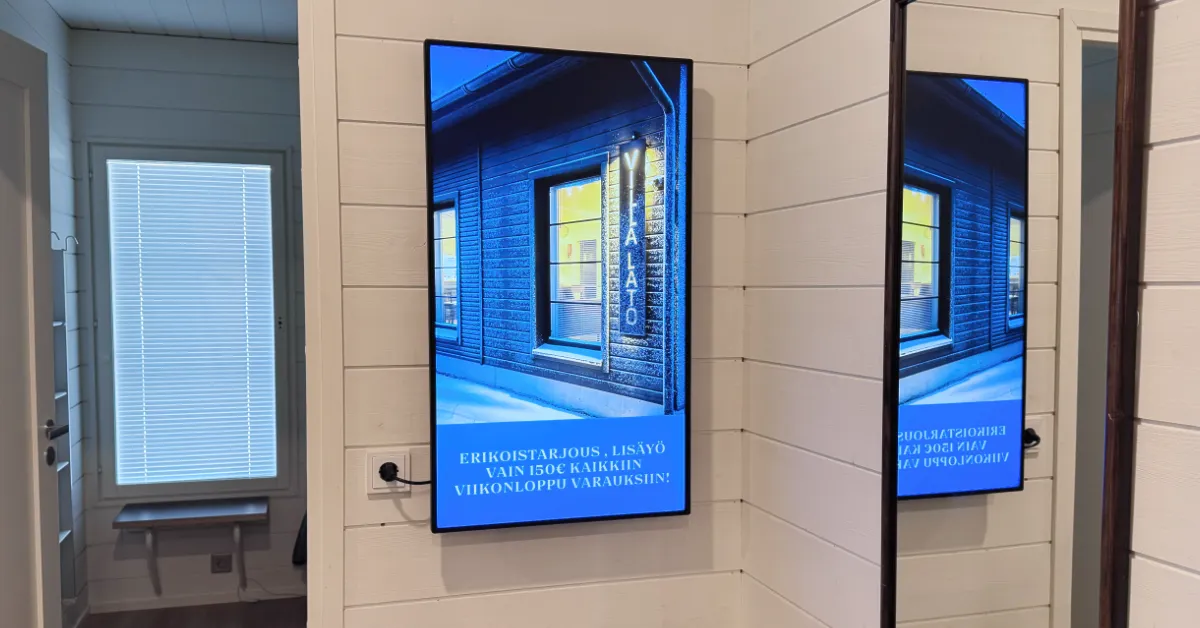
The reception area is the first thing a visitor sees. A screen showing your company name, a welcome message with the visitor's name, or your latest project work sets a professional tone instantly.
Finnish companies with multiple meeting rooms often add a room schedule to the lobby display: who is expected, when, and in which room. This reduces the front desk load and makes the visitor experience feel organised. You can connect a Google Slides presentation from Google Drive and update the welcome content from anywhere.
One practical tip: keep the lobby display on a separate screen from the break room screens. Visitor-facing content should be curated differently from internal communications, and InfoBox lets you manage each screen independently.
4. Meeting room availability displays
The classic hybrid office frustration: you book a room, you arrive, someone is already in there. A small screen mounted beside the meeting room door showing the current booking status eliminates this entirely.
With InfoBox, you can display a Google Slides or SharePoint page showing the room schedule. If your calendar system exports to a public URL or embed, the screen can show live room status. For offices with three to five meeting rooms, even a simple schedule slide updated each morning removes the daily confusion.
5. Remote team presence and video links
Hybrid work creates an asymmetry: the remote person is a small rectangle on a laptop screen while the in-office group fills a conference table. Some Finnish companies address this by leaving a dedicated screen in the meeting room connected to the video call, giving the remote attendees a full-size presence in the room.
Beyond meetings, a screen can show a live feed of a remote office location, creating a sense of shared space. This is sometimes called a "window wall" setup. You display a simple video stream or a rotating set of photos from the other location. It is a low-cost way to maintain culture across offices.
6. SharePoint and Canva content
Most Finnish companies already produce internal content in SharePoint or design assets in Canva. InfoBox supports both. You can display a SharePoint intranet page, an HR bulletin, or a Canva design directly on the screen without exporting or re-uploading anything.
The SharePoint integration is particularly useful for companies with a live intranet. When the intranet is updated, the screen reflects the change automatically. For companies without a dedicated intranet, Canva is the faster path: design a template once, publish it to the screen, and update the text fields as needed.
7. Safety, compliance, and training reminders
Regulated sectors such as construction, manufacturing, and healthcare have used screens for safety information for years. Office environments have their own compliance needs: data handling reminders, information security policies, fire exit routes, and first aid locations.
InfoBox lets you rotate these reminders in the slideshow between other content, so they appear regularly without dominating the screen. You can set a safety slide to appear every fifth item in the rotation. It is one of the easiest ways to meet training visibility requirements without scheduling extra meetings.
8. Recognition, culture, and team news
Gallup's 2024 employee engagement data shows that recognition is one of the most underprovided motivators in European workplaces (Source: Gallup State of the Global Workplace 2024). A screen is one of the cheapest ways to fix it. When a team closes a deal or a colleague celebrates a work anniversary, a slide on the break room display makes the moment visible to everyone.
Other culture uses that Finnish offices have found effective: team event photos uploaded from Google Drive, a weekly fun fact or quiz question, a countdown to the summer party, and rotating quotes from customer feedback. None of this requires design skills. A photo with a short text line made in Canva takes five minutes and can stay on rotation for a week.
How to get started in a typical Finnish office
Most offices start with one or two screens and expand once the team sees how simple it is to manage content remotely. The most common starting points are the break room (high traffic, natural attention) and the lobby (visitor-facing, professional impression).
If you have a modern Android TV in the break room, InfoBox runs on it directly with no additional hardware. For older screens or monitors, the 59 € InfoBox Basic device plugs into any HDMI port and has the software pre-installed. You register the screen in the platform, add your first content, and the screen updates within a minute.
Content management is fully remote. You can add a slide, change a schedule, or swap an image from your phone while traveling. If you manage multiple office locations, all screens are visible in the same platform view.
typical setup time on an existing Android TV
per screen per month for 10+ screens, billed annually
remote management, no on-site IT needed after setup
Scheduling tips for hybrid offices
One overlooked feature of digital signage in hybrid offices is scheduling by time of day. A few patterns that Finnish offices have found useful:
- Morning briefing slot (8:00–9:30): Show the day's agenda, meeting rooms, and any announcements. This is when people arrive and check what is on.
- Lunch window (11:00–13:00): If there is a staff canteen or nearby restaurant, show the lunch menu. If not, rotate team news and recognition slides during the natural break period.
- End of day (16:00–17:30): Show tomorrow's highlights, weekly targets versus actuals, or a team photo. End the day with something positive.
- Off-hours: Consider setting screens to standby mode after 18:00. InfoBox supports scheduled on/off to avoid burning screens overnight and to reduce energy consumption.
What offices using InfoBox say
KotiSome LKV, a Finnish real estate agency, uses InfoBox screens to display KPI dashboards in their break room. "Our sales team can see KPIs in real-time on the break room display," a customer representative noted. KSBR, a Finnish construction company, manages staff communication across sites: "Really easy staff communication on break room displays, completely remotely."
Botta Events, which manages a multi-floor event venue, uses InfoBox to direct guests: "Managing lobby and meeting room displays from one place is super convenient."
Ready to upgrade your office screens?
Start a free 14-day trial or book a 15-minute demo. We will walk through which screens in your office would benefit most and how to set up the content.
Frequently asked questions about office digital signage
Can I show Power BI on an office screen without a separate computer?
Yes. InfoBox displays Power BI reports via the embed URL. The screen runs the InfoBox app on an Android TV or an InfoBox Basic device connected to any monitor. No separate Windows computer or browser session is needed.
How do I manage screens in multiple office locations?
All screens registered in InfoBox appear in the same cloud-based platform. You can push content to a specific screen or to all screens at once, from any device with a browser. Location does not matter.
What happens to the screen if the internet connection drops?
InfoBox caches the current content locally. If the connection drops, the screen continues showing the last downloaded content. Once the connection is restored, it syncs any updates automatically.
Do I need to hire IT support for installation?
No. If you have a modern Android TV, you download the InfoBox app and register the screen in under three minutes. For older screens, the 59 € InfoBox Basic device is pre-configured and simply plugs into the HDMI port. InfoBox includes a remote onboarding session in the subscription price.
Can I show different content on the lobby screen versus the break room?
Yes. Each screen in InfoBox is managed independently. The lobby screen can show a visitor welcome message and a company overview while the break room shows the KPI dashboard and team announcements. Content is assigned per screen, not broadcast to all screens at once.
Frequently asked questions
Can I show Power BI on an office screen without a separate computer?
Yes. InfoBox displays Power BI reports via the embed URL. The screen runs the InfoBox app on an Android TV or an InfoBox Basic device connected to any monitor. No separate Windows computer or browser session is needed.
How do I manage screens in multiple office locations?
All screens registered in InfoBox appear in the same cloud-based platform. You can push content to a specific screen or to all screens at once, from any device with a browser. Location does not matter.
What happens to the screen if the internet connection drops?
InfoBox caches the current content locally. If the connection drops, the screen continues showing the last downloaded content. Once the connection is restored, it syncs any updates automatically.
Do I need IT support for installation?
No. If you have a modern Android TV, you download the InfoBox app and register the screen in under three minutes. For older screens, the 59 € InfoBox Basic device is pre-configured and plugs into the HDMI port. InfoBox includes a remote onboarding session in the subscription price.
Can I show different content on the lobby screen versus the break room?
Yes. Each screen in InfoBox is managed independently. The lobby screen can show a visitor welcome message while the break room shows the KPI dashboard and team announcements. Content is assigned per screen.

Author
Kasper Välimäki
CEO, InfoBox
Kasper is the founder and CEO of InfoBox. He has helped hundreds of Finnish businesses deploy digital signage in restaurants, retail stores, offices, and construction sites.
Learn more