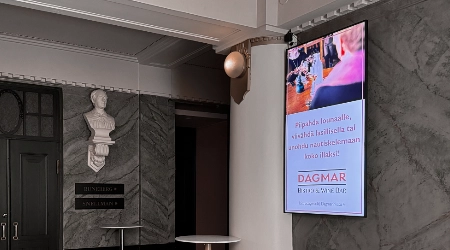
The InfoBox Canva integration is live: connect your Canva account, import design pages as slides and let the sync push every Canva edit to your screens.
The InfoBox Canva integration is live. Connect your Canva account to the InfoBox Platform, pick a design, and every page of it lands on your screen as its own slide. From then on InfoBox pulls your Canva edits to the screens by itself. No exporting, no re-uploading.
Canva is the most common design tool among InfoBox customers. Until now a Canva offer or notice had to be exported as an image or video and uploaded to the InfoBox media library, and every edit meant doing that round again. That round is gone: design in Canva, and the screens follow.


default interval at which InfoBox checks Canva for changes
shortest sync interval, adjustable in five-minute steps
connect the Canva account once and the whole organization can use it
What the Canva integration does
The integration links your InfoBox organization to a Canva account through Canva's official API. Once connected, you add a Canva design to a screen or a playlist the same way you add an image or a video. InfoBox lists the account's designs, and the design you pick comes in whole.
- Every page is its own slide. Every page of the design is imported. To show only some of them, hide the others in Canva: hidden pages come in as hidden slides and stay off the screen until you unhide them in Canva.
- Edits arrive on their own. By default InfoBox checks once an hour whether the design has changed and fetches the new version. You can shorten the interval to five minutes, or push a change to the screen immediately with the Sync button.
- Imported slides behave like any other. You can set duration, weekdays and time windows on them just like on any InfoBox content, and those settings survive when a new version is fetched.
- Content stays on the screens. InfoBox stores an exported copy of every page. If the Canva connection is later removed, the screens keep playing the latest version. Only the updates stop.
How to set it up
1. Connect your Canva account. An admin connects it on the Integrations page of the InfoBox Platform, or you can connect while adding content. InfoBox sends you to Canva's sign-in, and after approval the connection is available to the whole organization.
2. Pick the design. Open a screen or playlist, click Add new slide, and choose Canva under Integrations. First, hide in Canva any pages you don't want on screen. Then search for the design and import it.
3. Publish. The slides appear in the screen's content, and you publish the screen as usual. From here on, edits happen in Canva.
How the sync works
Each imported design has its own sync interval. The default is 60 minutes, the minimum is 5 minutes, and the interval moves in five-minute steps. Match it to how often the design really changes: an hour is plenty for a weekly offer, a lunch restaurant's daily special can run tighter.
Canva's API reports edits with a delay of roughly ten minutes, so an automatic update usually reaches the screen within the sync interval plus that delay. When you need a change on screen right now, the Sync button fetches the current version immediately. Each run's result shows on the Integrations page: success, no changes, or error.
The InfoBox Google Slides integration works the same way: every page of the presentation becomes its own slide.
Who benefits most
Chains and multi-site businesses. Import a Canva design into a playlist and it updates on every screen that uses the playlist. Switching a campaign across the whole chain is one edit in Canva.
Restaurants and cafes. The menu and daily specials live in a Canva template, and a change from the kitchen shows on the dining room screen without exporting images.
Retail. Design the week's offers once in Canva, and the window and checkout screens follow the same design.
Offices and internal communication. Update the weekly bulletin in Canva and the break room screen follows. More ideas in what to display on digital signage.
What it costs and what you need
The Canva integration is included in the InfoBox Platform price. There is no extra charge. The software costs €9 per screen per month for fewer than ten screens and €7 per screen per month from ten screens up, billed annually. You also need the Canva account the designs were made in. Canva is free to use at its basic tier, so you can start using the integration without a paid Canva plan. Paid tiers add templates and brand tools, but InfoBox does not require them.
The integration is included with every InfoBox screen. Compatible devices are listed on the hardware page.
Guides and support
A step-by-step guide to connecting, importing pages and sync settings is in the InfoBox help center. All integrations, including Power BI, SharePoint and Google Drive, are on the features page.
Want to see the integration in action?
In a demo we connect a Canva account, import a design to a screen and walk through your own content flow. No commitment.
Frequently asked questions
What does the InfoBox Canva integration do?
It links your InfoBox organization to a Canva account. The pages of a Canva design are imported to a screen or playlist as individual slides, and InfoBox fetches your Canva edits to the screens on the sync interval you choose.
How quickly does a Canva edit show up on the screen?
By default InfoBox checks for changes once an hour, and you can shorten the interval to five minutes. Canva's API reports edits with a delay of roughly ten minutes. The Sync button fetches the current version of the design immediately.
Can I import only some pages of a design?
Yes, by hiding the other pages in Canva. InfoBox imports every page of the design, but pages hidden in Canva come in as hidden slides and stay off the screen. Unhide a page in Canva and it appears on the next sync.
What happens if the Canva connection is removed?
Slides already on the screens stay, because InfoBox stores an exported copy of every page. Updates stop until the account is reconnected.
Does the Canva integration cost extra?
No. It is included in the InfoBox Platform price of €9 per screen per month for fewer than ten screens and €7 per screen per month from ten screens, billed annually. You also need a Canva account.

Author
Kasper Välimäki
CEO, InfoBox
Kasper is the founder and CEO of InfoBox. He has helped hundreds of Finnish businesses deploy digital signage in restaurants, retail stores, offices, and construction sites.
Learn more