Supported content for digital signage: images, video, PowerPoint, Word, Excel, PDFs, web pages, YouTube and integrations, plus what keeps playing offline.
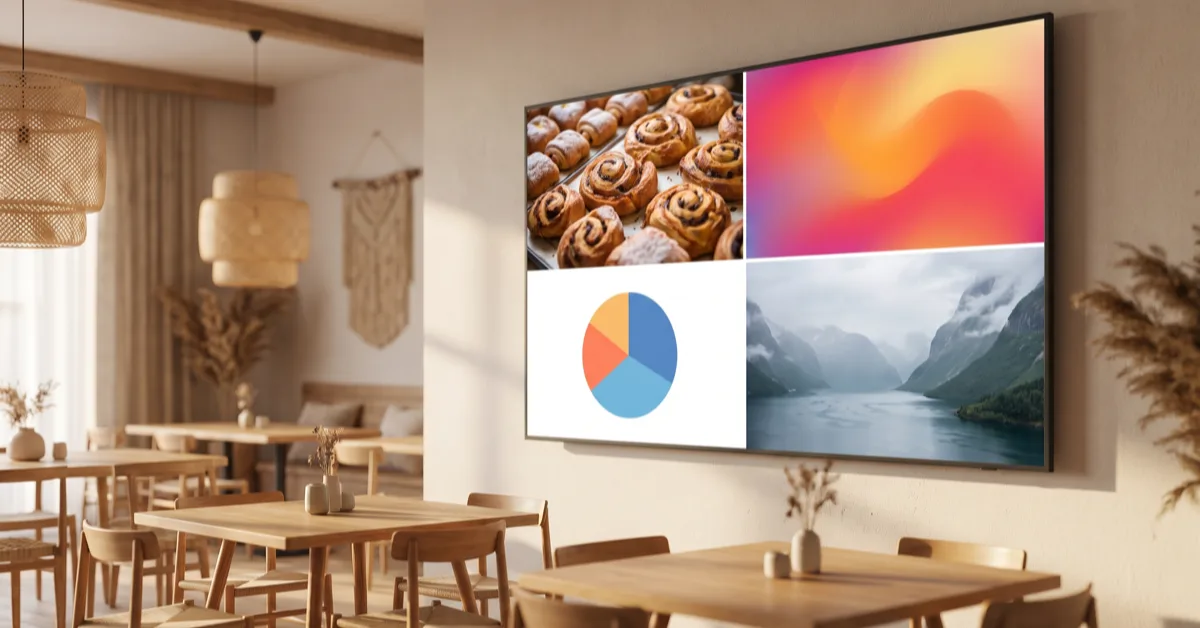
InfoBox digital signage supports images (JPG, PNG, GIF and WebP), video (MP4, MOV and WebM), PowerPoint decks, Word and Excel files, multi-page PDFs, web pages and YouTube videos, plus built-in content types such as a clock, weather, news and public transport departures. Integrations bring content straight from Canva, Google Slides, Power BI and SharePoint. Every content type is included in the price of every screen.
This guide goes through each one: which file formats work, what to check before you upload, and which content keeps playing when the screen loses its connection. At the end there is a short list of what a signage screen will not show, so you find out now rather than on installation day. New to the topic? Start with what digital signage is.
to add content: your own files, web addresses and integrations
recommended size for landscape screens, 1080×1920 for portrait
extra for any content type or integration
Supported content for digital signage at a glance
The table lists every content type. The last column says whether it keeps playing when the screen goes offline.
| Content type | Format or requirement | Works offline |
|---|---|---|
| Images | JPG, PNG, GIF, WebP | Yes |
| Video | MP4, MOV, WebM, with or without sound | Yes |
| PDF, PowerPoint, Word and Excel | Each page becomes its own slide | Yes |
| Web pages | Public HTTPS address, no login | Only if the page loaded before the outage |
| YouTube | Link to a public or unlisted video | No |
| Clock, weather, news, departures | Built-in content types, no design work | Yes, if they loaded before the outage |
| Canva and Google Slides | Connected account, each page becomes a slide | Yes |
| Power BI and SharePoint | Connected Microsoft account, content straight from the source | SharePoint folder files yes, other content only if it loaded before the outage |
| Playlist | A whole playlist as one slide | Depends on the slides inside it |
Images: JPG, PNG, GIF and WebP
Images are what most screens show most of the time: an offer, a notice, a menu or a campaign poster. InfoBox supports JPG, PNG, GIF and WebP. Use JPG for photos, PNG for logos and graphics with a transparent background, and WebP when you want small files that load fast.
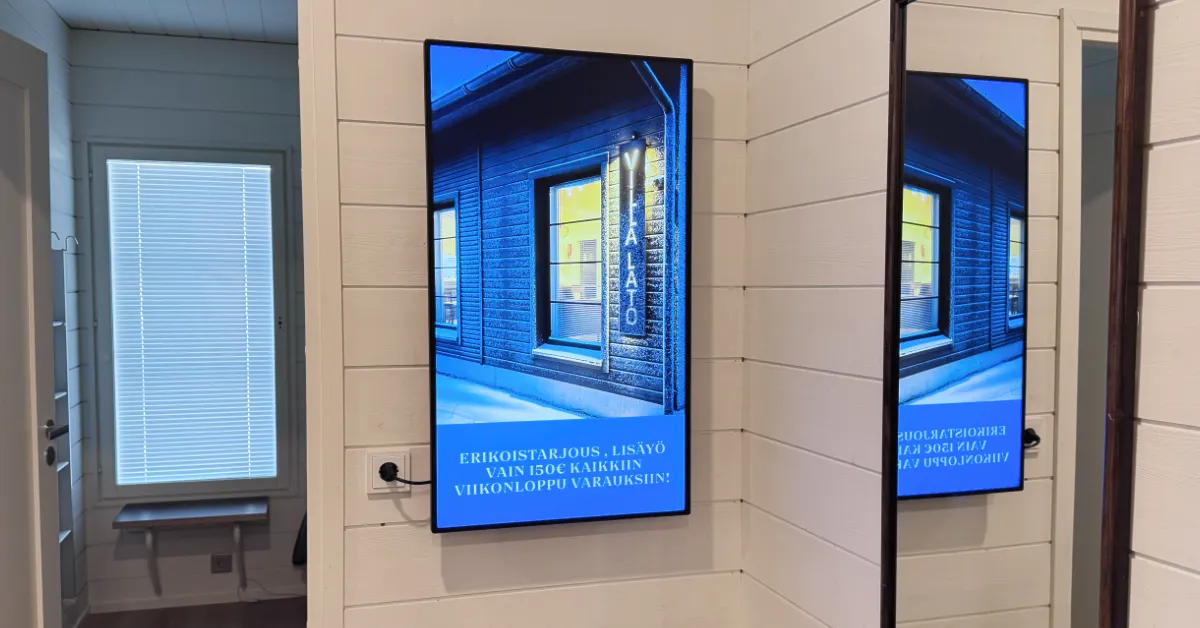
- Match the screen. Make landscape images 1920×1080 pixels and portrait images 1080×1920. A smaller image gets scaled up and looks soft on a large screen.
- No need to shrink large images. If the long side of a JPG, PNG or WebP image is over 3,840 pixels, InfoBox scales it down to 4K. A single file can be up to 500 MB.
- Rotate in InfoBox. If a portrait screen is a landscape display turned on its side, set the orientation once in the screen settings and all content turns with it. You can also rotate a single image 90 or 180 degrees.
- Upload once. An image in the media library can be used on every screen in your organization without uploading it again, and folders control which users can see it.
Video: MP4, MOV and WebM
InfoBox plays MP4, MOV and WebM video. A file saved by a phone, camera or editing app usually works as it is, iPhone MOV files included.
- 4K works if the device can handle it. InfoBox also makes lighter MP4 versions of every video. If a 4K video shows black on a screen, turn on Compatibility mode in the screen settings, and the screen gets a version it can play.
- Full HD is enough. Aim for 1920×1080 pixels and a bitrate of 5–10 Mbps. Smaller files reach the device faster and take less space.
- Sound plays. Videos play with their sound. Where sound is not wanted, turn on Mute video in the video's settings. Captions are still worth adding, because people walking past do not always hear it.
- The whole video plays. The slide lasts as long as the video, so there is no duration to set.
PDFs and PowerPoint, Word and Excel files
A multi-page PDF is the easiest way to get a menu, a weekly bulletin or a report on screen. InfoBox splits the PDF into pages, and each page becomes its own slide that shows for the duration you set. Large files are processed in the background, page by page.
A PowerPoint deck (PPTX or PPT) can be uploaded to the media library as it is. Each page becomes its own slide as a still image, so animations, transitions, embedded videos and sound do not play. Add videos to the screen separately as video files. Save a Keynote deck as PowerPoint or PDF first. If the deck lives in Google Drive, the Google Slides integration brings it to the screen and keeps it current, both native Google Slides decks and PowerPoint files stored in Drive.
Word documents (DOC or DOCX) and Excel workbooks (XLS, XLSX or XLSM) upload to the media library the same way. Each page of a Word document becomes its own slide. For an Excel workbook you choose the sheets to show, and each one becomes its own slide. If a page does not fill the screen as it is, crop it to the screen's shape with Fit to screen. The Whole page layout shows the full page on a white background, and Two pages shows two consecutive pages side by side.
One tip: a PDF made for print is rarely readable on a screen. Body text from an A4 page is too small from three metres away, so make a screen version with large type, little text and strong contrast.
Web pages: anything with a public address
To show a web page, paste its address into a Website slide under the Web category. That puts your online shop's campaign page, an events calendar, a booking system's status view or a city's notice page on the screen. The screen shows the page as it is right now, and a refresh interval in minutes sets how often it reloads.
The page has to meet three conditions:
- It is a public HTTPS address. Test it in a private browser window first. If it opens there without a login, it opens on the screen too.
- It needs no login. A screen has no user account, so intranet pages and anything behind a sign-in will not show.
- It allows embedding. Some sites refuse to be shown inside another service. InfoBox's preview tells you when that is the case, and the screen then opens the page directly.
Web pages need a connection. If it drops, the page only shows if it loaded before the outage. On screens with a patchy connection, lean on images, video and PDFs.
YouTube videos by link
A YouTube video goes on screen with just its link: choose YouTube under Integrations and paste the address. The whole video plays without player controls, and the slide lasts the length of the video. Sound is off by default and can be switched on. The video has to be public or unlisted, and the screen has to be online, because the video streams from YouTube. If the connection is unreliable, upload the same video to InfoBox as a video file. The details are in YouTube on digital signage screens.
Built-in content: clock, weather, news and departures
Some content needs no file at all. Built-in content types are added from the same menu as everything else and stay current without anyone touching them.
- Clock. Shows the time, in a lobby or a break room.
- Weather. Type a town name and you are done. The forecast comes from MET Norway, the Norwegian Meteorological Institute.
- News and RSS feeds. Feeds from the Finnish publishers Yle, MTV Uutiset, Ilta-Sanomat and Helsingin Sanomat are built in, and you can add headlines from any public RSS or Atom feed.
- Bus and train departures. In Finland, you build the stop view in the transit authority's own stop display tool, such as HSL, Nysse or Matka.fi, and paste its link into InfoBox. Train departures come from junalahdot.fi. The screen shows the same departures as the authority's own view.
Integrations and partner services
An integration takes content straight from the service where it is made. When someone edits it there, the screen follows, and nobody exports or uploads files again.
- Canva. Connect your Canva account and pick a design. Each page becomes a slide, and edits reach the screen on the sync interval, hourly by default, or at once with Sync now. More in the Canva integration guide.
- Google Slides. Connect a Google account and pick a presentation. It works like Canva: each page becomes a slide and changes follow on the sync interval. PowerPoint files stored in Drive work too.
- Power BI. The Power BI integration shows your organization's reports without a public link. It needs the reports' workspace on Fabric, Premium or Embedded capacity. Without that, a Publish to web link can be added as a web page, which makes the report public. Requirements and setup: Power BI on digital signage screens.
- SharePoint. Once a Microsoft account is connected and IT has given InfoBox read access to the chosen sites, the screen can show a site's news, upcoming events and the images, videos and Office files in a chosen folder. Folder files are synced into the screen's content, so they keep playing offline.
Partner services add industry content, mainly for the Finnish market: Lounastaja keeps a restaurant's lunch menu current and Sinebrychoff ContentHub brings drinks advertising to Sinebrychoff's restaurant customers. Sitedrive and CALS are not integrations, but if a service offers an embeddable address, its construction schedules and notices can be shown as web pages in site break rooms.
A playlist as a slide
You can add a whole playlist to a screen as a single slide. When its turn comes, the playlist plays from start to finish, and then the screen carries on with its own next item. Chains use this a lot: a shared campaign is built once as a playlist, and each location's screen shows it between its own content. Edit the playlist and every screen follows.
Which content type for which job?
The same thing can often reach the screen in several ways. Rule of thumb: pick the route where the content is updated in the place where it is already made.
- Menus. A PDF or a Canva design, so a price change is made in one place. Restaurants in Finland can use Lounastaja for the lunch menu.
- Offers and campaigns. The Canva integration when marketing works in Canva. Give the campaign a start and end date and it leaves the screen by itself.
- Sales figures and targets. The Power BI integration. Nothing gets copied: the screen shows the same report as the team's laptops.
- Internal notices. An image or a Google Slides deck for the weekly update. Urgent messages go out as a mass announcement, which takes over the chosen screens for a while.
- Company and product videos. A YouTube link when the video is already published and the screen is online. A video file when the connection drops or the video should stay off YouTube.
- Lobby and waiting-room basics. Clock, weather and departures. They need no upkeep and keep people looking at the screen after the rest of the content has become familiar.
How to prepare files for a signage screen
Most content problems start before the upload. These five steps keep images sharp and videos playing.
- Check the orientation. 1920×1080 pixels for landscape screens, 1080×1920 for portrait. Content made for the wrong orientation leaves empty bars on the screen.
- Save in the right format. Images as JPG, PNG or WebP, videos as MP4, MOV or WebM, and decks and documents as PowerPoint, Word, Excel or PDF.
- Check the size. A single file can be up to 500 MB. A Full HD video is usually well under that, and a smaller file reaches the device faster.
- Upload to the media library. Sort files into folders, by location or campaign, so you can find them later.
- Add to the screen and publish. Add the file to a screen or playlist, set the duration and schedule, and publish. The content usually appears on the screen within a minute.
What a digital signage screen will not show
Worth knowing before you start making content:
- PowerPoint animations and videos. PowerPoint shows as still images. Add the deck's videos to the screen as separate video files.
- Pages behind a login. An intranet, a mailbox or any page that asks for credentials stays stuck on the sign-in screen.
- Private YouTube videos. The video has to be public or unlisted, and the owner must not have blocked embedding.
- Small print. The file works, but nobody reads it. This is the most common reason a screen does not pay off.
For ideas on what to put on the screen once the formats are sorted, see 12 content ideas for digital signs.
What do the content types cost?
Nothing extra. Every content type and integration, Power BI and SharePoint included, is in the InfoBox Platform price of €9 per screen per month for fewer than ten screens and €7 per screen per month from ten screens, billed annually. Mass announcements are included too, and your organization's admin switches them on. Every screen gets every content type, whatever device runs it. Compatible devices are listed on the compatible hardware page and prices on the pricing page. The price calculator gives the cost for your number of screens, and scheduling, remote management and the rest of the digital signage software features are on the features page. Technical details are in the InfoBox help center.
Want to see your own content on a screen?
In a demo we put your images, videos and web pages on a screen and show how the integrations work. No commitment.
Frequently asked questions
What file types does digital signage support?
InfoBox digital signage supports JPG, PNG, GIF and WebP images, MP4, MOV and WebM video, PowerPoint decks, Word and Excel files and multi-page PDFs. You can also add web pages, YouTube videos, a clock, weather, news and departures, plus content from Canva, Google Slides, Power BI and SharePoint.
Which video formats work on digital signage?
MP4, MOV and WebM. A video saved by a phone or camera usually works as it is, iPhone MOV files included. Aim for Full HD and a bitrate of 5–10 Mbps. Videos play with sound, and you can mute each video separately.
Can a digital signage screen show a website?
Yes, if the page has a public HTTPS address, needs no login and allows embedding. Paste the address into a Website slide under Web, and the refresh interval sets how often the page reloads.
How do I put a PowerPoint presentation on a signage screen?
Upload the PPTX or PPT file to the media library, and each page becomes its own slide as a still image. Animations and embedded videos do not play. Or use the Google Slides integration, which brings a presentation stored in Google Drive to the screen and keeps it current, PowerPoint files included.
Which content works when the screen is offline?
Images, videos, PDF, PowerPoint, Word and Excel pages in the media library, and files synced from Canva, Google Slides and a SharePoint folder, keep playing from the device's cache during an outage, and schedules keep running. Web pages, the clock, weather and news only show if they loaded before the outage, and YouTube videos do not play offline.

Author
Kasper Välimäki
CEO, InfoBox
Kasper is the founder and CEO of InfoBox. He has helped 600+ customers deploy digital signage in restaurants, retail stores, offices, and construction sites.
Learn more